Logging In
Prior to logging in to Nebula, users must have an account set up by a system administrator.
Nebula uses Nebula Auth 2.0 when logging in to the application, allowing for real-time synchronization of changes to user and firm settings across all Nebula instances globally. Rather than entering a username at the time of login, a valid email address is required instead.
Note: Nebula will lock your account after five failed login attempts.
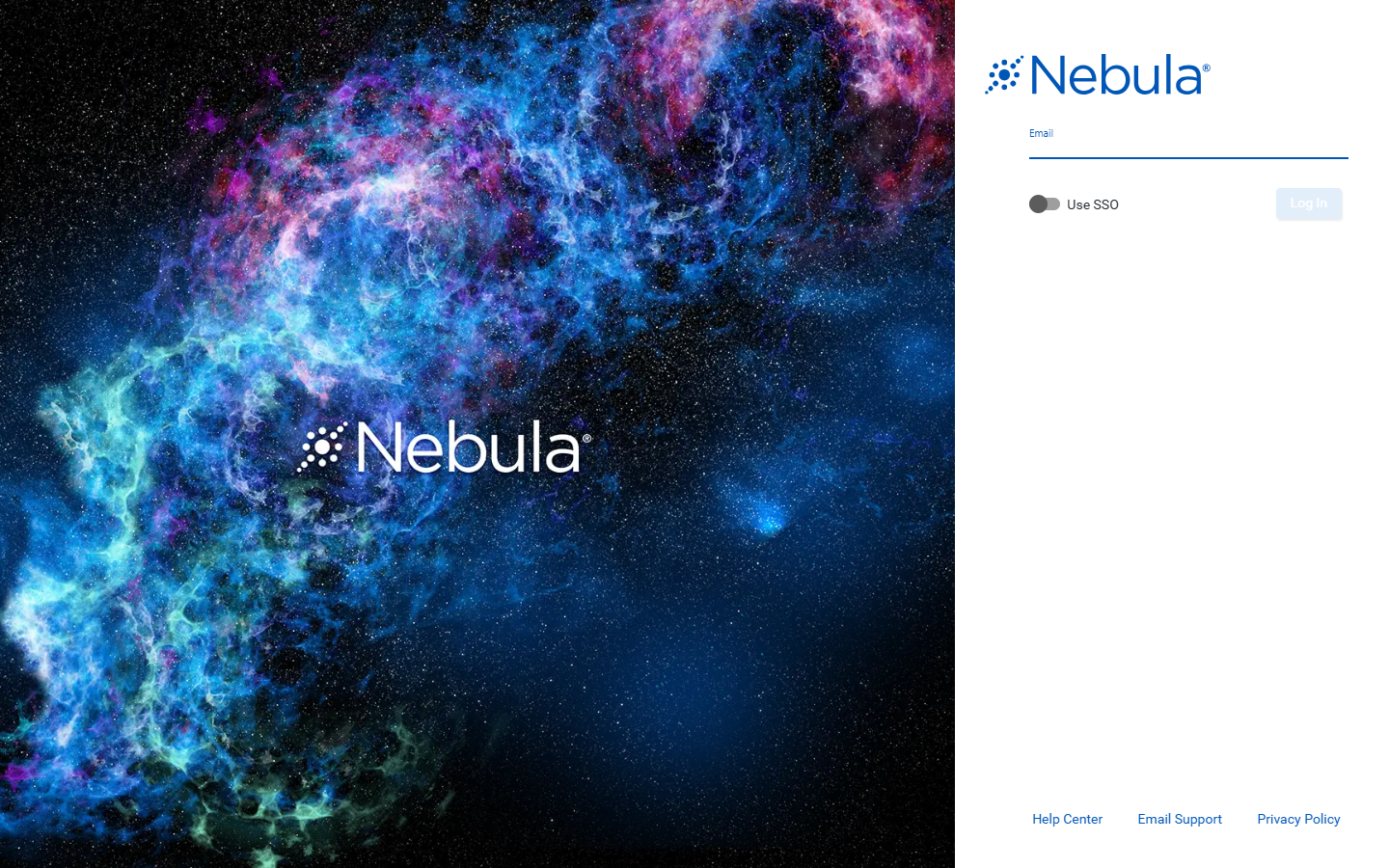
To log in to Nebula
- Connect to Nebula.
- On the Nebula log in page, type your Email and press
Enter. - Enter your Password.
- To refresh the Log In page enter a different email address, click Change Email.
- Click Log In.
Note: The minimum password length is 12 characters. Password parameters can be configured at the Firm level.
Once successfully logged in, users will be directed to their Repositories.
Single Sign-On (SSO) Authentication
Nebula can be configured to use single sign-on (SSO) authentication capabilities for Firms (organizations) using Microsoft Entra ID (previously Azure Active Directory) or Okta as an SSO provider in Nebula.
To log in to Nebula with SSO
- Connect to Nebula.
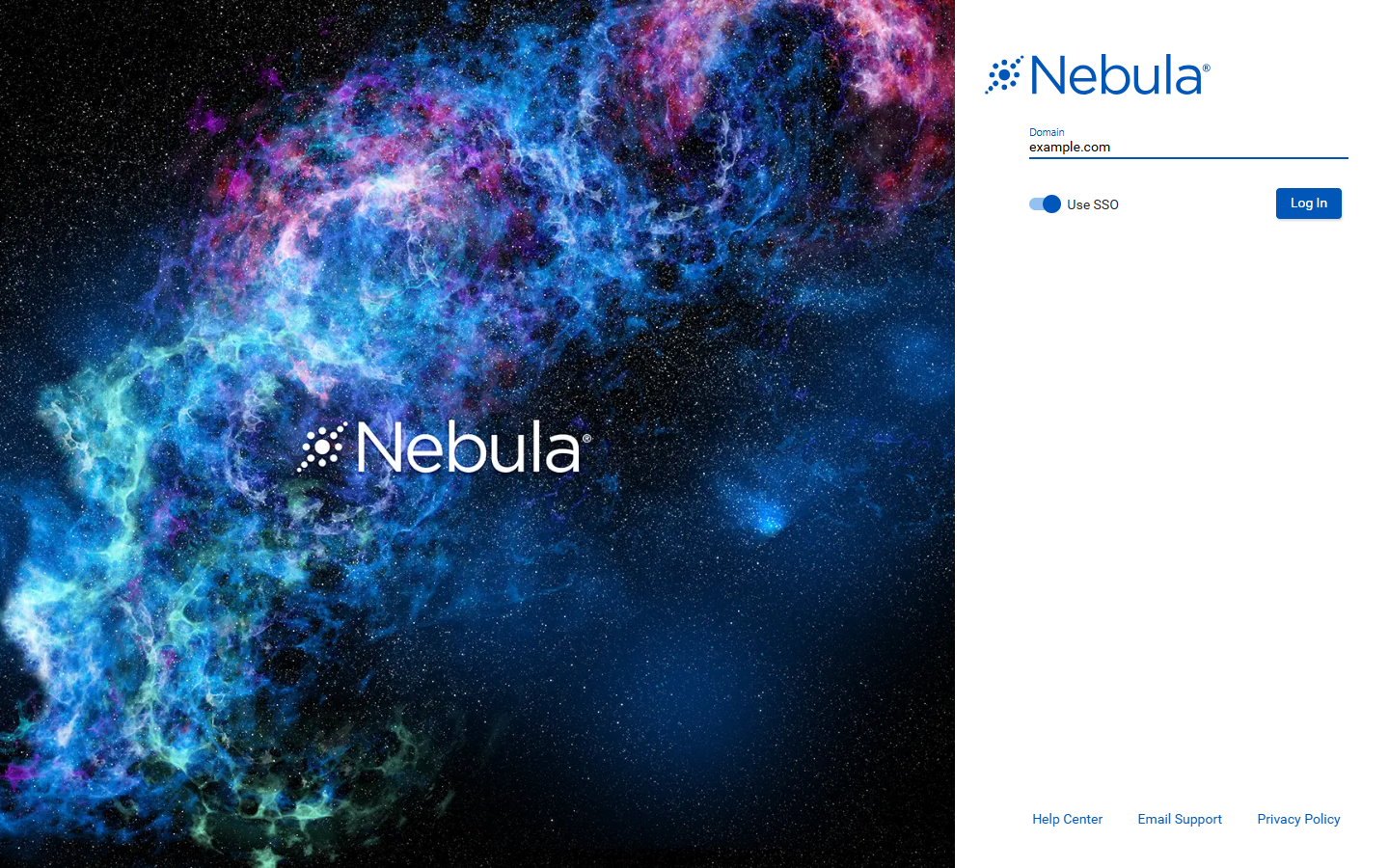
- On the Nebula log in page, click the Use SSO toggle.
- Type your organization's Domain and click Log In.
- Users will then need to authenticate through their SSO provider, and once successful, will be directed to their Repositories.
Note: Enter only the domain portion of your work email address. For example, if your SSO email is john@example.com, enter example.com. If your organization uses a custom or masked domain and you're unsure what to enter, contact your IT administrator.
Email Two-Factor Authentication
When email two-factor authentication is active, Nebula users receive an email with a 6 digit code that they need to enter before logging in.
To log in to Nebula when email two-factor authentication is in use
- Connect to Nebula.
- On the Nebula log in page, type your Email and press
Enter. - Enter your Password
- If using DUO, select the Secondary Authentication (
Send Push,Call Me, orEnter Code). - On the Nebula log in page, enter the 6-digit code sent to your email in a message titled "Authorization Code."
- Click Log In.
Note: The code expires after 10 minutes.
Support
Click Support to open an email message addressed to NebulaSupport@ediscovery.com.
Click Nebula Help to access the Nebula Help documentation.