AutoRedact Patterns
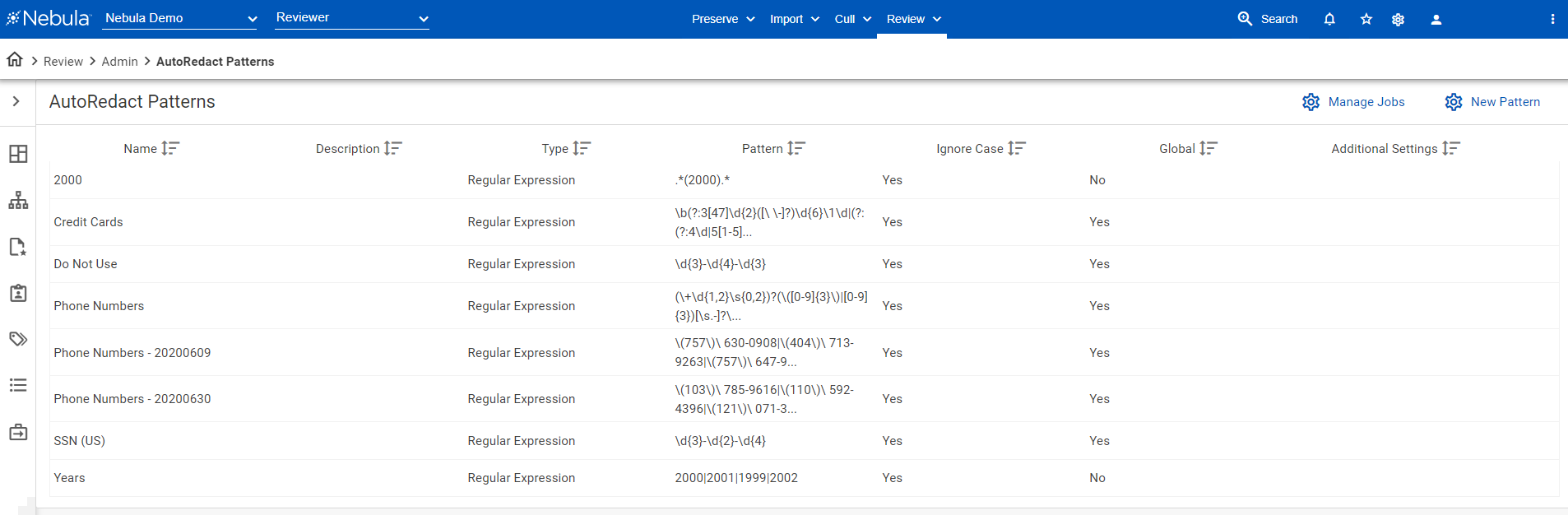
The AutoRedact Patterns page in Nebula is a library of patterns to be used to define AutoRedact jobs on the Redact Documents tab. A pattern can be a:
- Regular expression
- Word
- Phrase
- Zone
By default, AutoRedact provides patterns for:
- Phone numbers (xxx-xxx-xxxx)
- Email addresses
- Credit cards
- Social security numbers
- Gender
- Dates (mm/dd/yyyy)
- IP addresses
Note: Default patterns, such as phone numbers and dates, follow United States formatting conventions. If you require a pattern that does not exist or uses a different format (such as 01xxx xxxxxx for phone numbers or dd/mm/yyyy for dates), consult your Project Manager for aid in creating it. Once you add a pattern into the library, it is available to use in an AutoRedact job.
Patterns created for AutoRedact will not search for phrases from one line to the next, even if you build your regular expression to do so.
Example 1
If you are searching for the string “The smoking gun”, then AutoRedact will only find instances of that phrase standing entirely on a single line in the extracted text, even if you add, for instance, [\s\t\r\n\b]+ between the words in your regular expression to find the phrase also in the case where "smoking" is at the end of one line and "gun" is at the beginning of the next.
Example 2
AutoRedact cannot find the bold text in the sample below, even with a properly construct a regular expression, as the text appears across more than one line.
To view the AutoRedact Patterns page
- Click Review > Admin > AutoRedact.
- On the AutoRedact Jobs page, click
 .
.
To create a new pattern
- In the AutoRedact Patterns menu bar, click
 .
. - On the New Pattern dialog box, enter the following
- Name: Name of the AutoRedact pattern.
- Description: Summary of what content the pattern redacts.
- Type: Select if the pattern is a Regular Expression, Word, or Phrase.
- Addtional Settings: Enter the following:
- Prefix
- Prefix Spacing
- Postfix
- Postfix Spacing
- Zone Left Offset
- Zone Top Offset
- Zone Width
- Zone Height
- Pattern: Enter the pattern to be redacted
- Global: Select to make the pattern available in all repositories, clear to limit the pattern to only the current, active repository.
- Ignore Case: Select to redact only if case matched that defined in the Pattern, clear to ignore case when redacting pattern
- Click Save.
To edit an AutoRedact pattern
- In the AutoRedact Patterns list, locate the patterns you want to edit, its Action icon
 and select Edit.
 - On the Edit Pattern dialog box, update the Name, Description, Type, Additional Settings, and Pattern accordingly.
- Click Save.
To delete an AutoRedact pattern
- In the AutoRedact Patterns list, locate the patterns you want to delete, click its Action icon and select Delete.
- On the Delete Item dialog box, click Delete.
To open the AutoRedact Jobs page from the AutoRedact Patterns page
- In the AutoRedact Jobs menu bar, click
 .
.