Early Case Assessment Intelligence (ECAi)
The ECAi (Early Case Assessment Intelligence) feature in Nebula leverages generative AI to analyze document collections and automatically categorizes documents based on case themes. ECAi analyzes the entire dataset (or just a subset if preferred) using a Case Summary, which tells the AI the background of the case and the review objectives.
The AI then rapidly generates a list of categories relevant to the matter and categorizes documents in relation to those categories. This enables case teams to quickly identify and organize key documents before they reach the review stage.
Key Benefits
-
Early Insights: Analyze data in the Cull module before promotion to Review
-
AI-Powered Categorization: Automatically generate case themes from your Case Summary
-
Rapid Results: Quickly understand what documents relate to key case themes
-
Flexible Scoping: Run analysis across all documents or specific subsets
-
Review Integration: Push ECAi categories to Review as fields for seamless workflow
-
Facet Explorer Integration: Filter documents by ECAi categories in searches
How ECAi Works
-
Create a Case Summary: Draft a summary describing the background of the case and review objectives
-
Generate Categories: The AI analyzes the summary and creates up to 10 relevant categories (themes)
-
Customize Categories: Review, edit, or add up to 5 additional custom categories
-
Run Categorization: The AI analyzes the documents and assigns them to appropriate categories
-
Review Results: Preview categorized documents in Cull using Facet Explorer or Search
-
Promote to Review: Automatically create the categories as Fields/Tags in Review
ECAi Page (Cull)
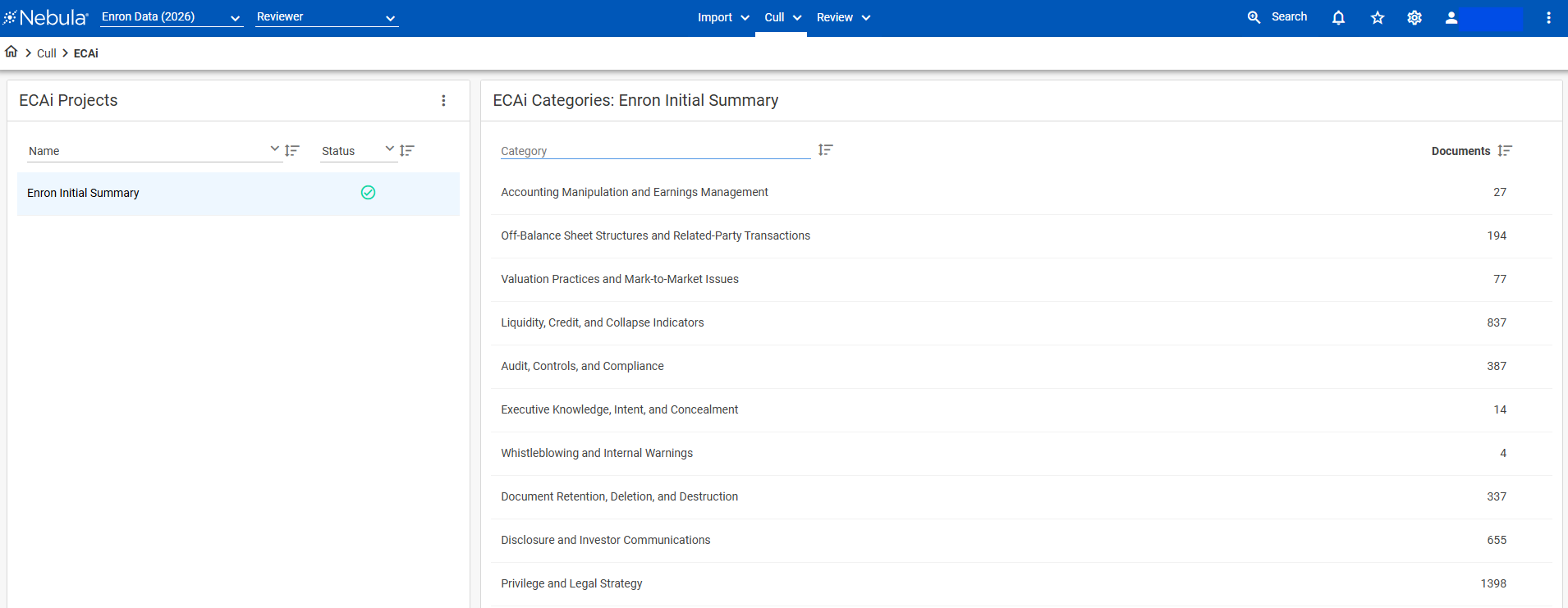
Projects Section
The Projects section displays all ECAi projects created in the repository.
Menu bar:
-
New Project: Create a new ECAi project
-
Project Name: Search for and view existing projects
-
Status: View project status (New, Running, Complete, Outdated, Error)
-
 : Select from the following actions:
-
Run Categorization: Executes the AI categorization across documents
-
Save to Field: Push categories to Review as checkbox fields
-
Edit: Opens the Edit Project dialog
-
Clone: Creates a copy of the project with the same settings
-
Delete: Permanently removes the project
-
Object Security: Create custom permissions for the project
-
Categories Section
Once a project is created and categories are generated, this section displays the AI-generated themes.
-
Category Name: The theme or topic identified by the AI
-
Document Count: Number of documents categorized under each theme (populated after running categorization)
-
Actions: Edit or remove individual categories before running categorization
Creating an ECAi Project
The following details the process and steps to create an ECAi project:
A. Create a New Project
-
In the repository, click Cull > ECAi.
-
On the ECAi page, click New Project.

-
On the New Project dialog box, provide a Project Name
-
Select the Scope for your analysis:
-
All Documents: Analyze the entire repository
-
Saved Search: Select a specific saved search to limit the document set
-
Important: Consider starting with a smaller subset to validate results before running across all documents. Running on large datasets may incur significant costs.
-
Choose whether to Include in Facet Explorer:
-
Selected: Categories will appear in the Facet Explorer for easy filtering
-
Not selected: Categories will only be available through the Search builder
-
-
Choose how to proceed:
-
Create: Create a blank project and input the Case Summary later
-
Add Case Summary: Proceed directly to adding your Case Summary
-
B. Add Case Summary and Generate Categories
The Case Summary is the foundation of ECAi analysis. It tells the AI the background of the case and your review objectives. The more detailed and specific your Case Summary, the more relevant and accurate the AI-generated categories will be.
To add a Case Summary and generate categories:
-
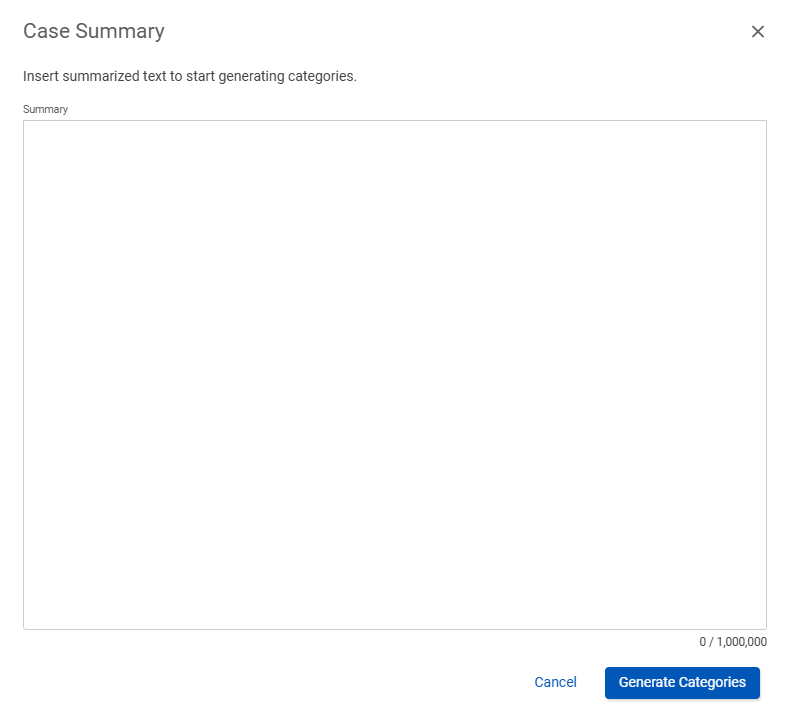
On the Projects section of the ECAi page, select your project and click Edit or navigate to the Case Summary section.
-
In the Case Summary text editor (rich text enabled), you can:
-
Copy/Paste: Copy a Case Summary from another source (complaint, memo, RFI, etc.)
-
Draft Your Own: Generate your own summary based on what you are looking for
-
-
Include key information in your Case Summary:
-
Background information about the case
-
Key legal theories or claims
-
Important custodians or entities
-
Relevant time periods
-
Issues to investigate
-
Review objectives
-
Items that are NOT relevant (to help AI exclude certain topics)
-
Character Limit: Up to 1,000,000 characters
Minimum: 500 characters recommended
Tip: Think about what you're looking for. The AI uses your summary to understand the case context and generate relevant themes.
-
Format your summary using the rich text editor features (bullets, bold, etc.) for better readability.
-
Click Generate Categories to have the AI analyze your Case Summary and create themes.
-
The system will quickly generate up to 10 categories based on your Case Summary.
C. Review and Customize Categories
After the AI generates initial categories, review them to ensure they align with your case needs.
To customize categories:
-
Review the AI-generated categories: The system creates up to 10 categories automatically based on your Case Summary.
-
Edit a category:
-
Click the category name or the Edit icon
-
Modify the category name as needed
-
Click Save
-
-
Remove a category:
-
Click the Delete icon next to the category
-
Confirm deletion
-
-
Add custom categories:
-
Click Add Category
-
Enter your custom category name
-
Click Save
-
You can add up to 5 additional custom categories (maximum 15 total: 10 system-generated + 5 custom)
-
Note: Adding your own categories allows you to capture specific themes you know are relevant to your case that may not have been generated by the AI.
-
At this point, you can still:
-
Edit the Case Summary
-
Regenerate categories (click Generate Categories again)
-
Modify the project scope
-
Important: Once you run categorization, the Case Summary and category names become locked. To make changes after running categorization, you must clone the project and create a new version.
D. Run Categorization
Running categorization is when the AI analyzes your documents and assigns them to the generated categories. This is where the AI is analyzing the documents you have scoped and applying those to the generated categories.
Before running categorization:
-
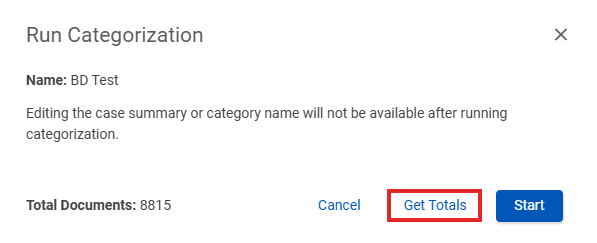
Click Get Totals to see exactly how many documents will be analyzed.
-
Review the document count to understand the scope of analysis.
-
Verify your selected scope is correct.
To run categorization:
-
Click Run Categorization.
-
Review the warning dialog:
-
After running, you cannot modify the Case Summary or category names
-
Document count is displayed
-
This is the action that processes documents through the AI
-
-
Click Start to begin the categorization process.
-
The system will analyze documents based on:
-
Your Case Summary
-
The generated/customized categories
-
The defined scope
-
Processing Time:
-
Monitor the status in the Categories section. When complete, document counts will populate for each category.
Previewing and Using ECAi Results
Once categorization is complete, you can preview and use the results in multiple ways within Nebula.
In Cull - Facet Explorer
If you selected "Include in Facet Explorer" when creating the project:
-
Navigate to any document list in Cull.
-
In the Facet Explorer panel, locate your ECAi project.
-
View document counts for each category.
-
Check/uncheck categories to filter your document list.
In Cull - Search Builder
-
Navigate to Cull > Search.
-
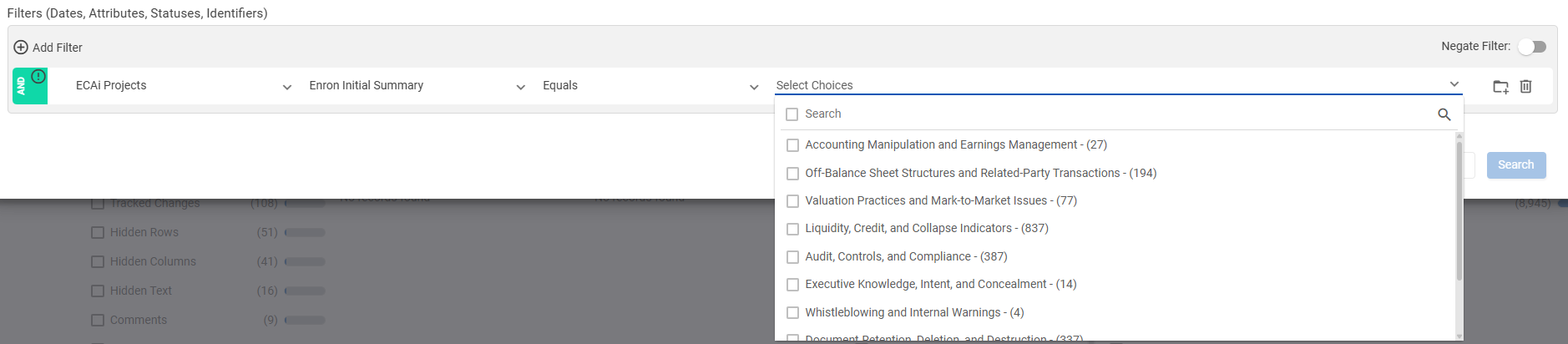
Click Add Filters section.
-
Search for or select ECAi from the filter options.
-
Select your project from the dropdown.
-
Select one or more categories to include in your search.
-
Click Search to view documents matching the selected categories.
Saving Categories to Review
Users have the option of automatically creating the Categories as Fields/Tags in Review by selecting Save to Field. This seamlessly integrates your ECAi categorization into the review workflow.
To save ECAi categories to Review:
-
On the ECAi page, locate your completed project.
-
Click the Action icon and select Save to Field.
-
On the Save to Field dialog:
-
Enter a Field Name (this will be the checkbox field name in Review)
-
Select the Matter to push the field to (if multiple matters exist)
-
Click Save
-
-
Navigate to Review > Fields & Tags to see the newly created field. The field will contain all categories as checkbox options, with documents that were categorized having the appropriate checkboxes pre-selected.
Using ECAi Categories in Review
In the Document List:
-
Click the Action Menu
-
Select Change Doc List View.
-
Add the ECAi field as a column to view which categories each document is assigned to.
In Search/Filtering:
-
Navigate to Review > Search.
-
In the Filters section, find the ECAi field.
-
Select categories to filter your review set.
In Workflow Stages:
-
Use ECAi categories to create targeted Workflow stages.
-
Assign review teams based on case themes.
-
Prioritize document review order based on categorization.
Modifying Categories or Case Summary
Because projects are locked after running categorization:
-
Click the Action icon next to your project.
-
Select Clone Project.
-
The cloned project will have:
-
The same Case Summary
-
The same categories
-
The same scope settings
-
-
Edit the Case Summary or categories as needed.
-
Regenerate categories if you modified the Case Summary.
-
Run categorization on the cloned project.
Permissions and Access
ECAi is permission-based and must be enabled by administrators.
To enable ECAi for users:
-
Navigate to Admin > Permission Groups.
-
Select the permission group.
-
Enable the ECAi permission.
-
Users in that group will now see the ECAi menu option in Cull.
Note: Administrators should carefully control which users have access to create and run ECAi projects based on your organization's AI policies and training requirements.
Guide: How to Write an Effective Case Summary
A well-crafted case summary is essential for guiding document review and ensuring consistent, accurate results. Use this guide to create clear, comprehensive case summaries that help reviewers understand exactly what they're looking for and why it matters.
Essential Components of a Case Summary
1. Case Background
Provide foundational context that orients reviewers to the matter:
-
Who is the party/client (e.g., SEC, prosecutor, corporation, plaintiff, defendant)
-
What is the case about (e.g., financial fraud, breach of contract, employment dispute)
-
Key dates or time period when relevant events occurred
-
Why the case matters – the stakes and significance
2. Client's Position
Clarify what your side is arguing or seeking:
-
What your client claims or seeks to prove
-
Main legal or business arguments
-
Goals of the proceedings (damages, injunction, dismissal, etc.)
3. Key Allegations and Areas of Interest
Be specific about the issues in your case. List the particular matters being examined:
-
What documents or information are critical?
-
What actions or transactions are under scrutiny?
-
Who are the key people, companies, and entities involved?
-
Include technical or industry-specific terminology that may appear in relevant documents
Example issues:
-
Were financial statements accurate?
-
Use of Special Purpose Entities (SPEs) to hide debt
-
Related-party transactions
-
Insider trading by executives
-
Earnings manipulation
-
Quarterly earnings processes
-
Financial controls and oversight
4. Document Relevance Guidance
Help reviewers make consistent decisions by clearly defining boundaries.
ALWAYS RELEVANT: List document types that are critical to the case.
Example:
-
Financial statements and SPE documentation
-
Executive communications about financial performance
-
Board minutes regarding financial transactions
-
Communications about quarterly earnings
-
Documents discussing financial controls
-
Board communications on relevant topics
NOT RELEVANT: Explicitly state what should be excluded.
Example:
-
Routine HR matters
-
General office correspondence
-
Marketing materials
-
Unrelated business operations
Best Sources for Developing Your Case Summary
Draw information from these key documents:
-
Complaints or answers
-
Request for Information (RFI) documents
-
Legal memos or case strategy documents
-
Interview notes or investigation reports
-
Prior case summaries from similar matters
-
Document review protocols
Sample Case Summary Template
Case Background: This case involves allegations of accounting fraud at [Company Name] during [Time Period]. [Client/Party] seeks to [prove/defend against] claims that executives engaged in financial misconduct.
Client Position: [Describe what your side claims or seeks to establish]
Key Allegations and Issues: The following issues are central to this matter:
-
Earnings manipulation
-
False financial reporting
-
Insider trading
-
[Additional specific issues]
Key Custodians: [Names and roles]
Key Entities: [Company names, subsidiaries, related parties]
ALWAYS RELEVANT – Documents About:
-
Quarterly earnings and financial results
-
Financial controls and internal oversight
-
Board communications regarding financial matters
-
[Additional relevant topics]
NOT RELEVANT – Exclude:
-
Routine HR matters
-
General office correspondence
-
Marketing materials
-
[Additional exclusions]
Tips for Success
-
Be as specific as possible – The more detail you provide, the better reviewers can identify relevant materials
-
Use clear language – Avoid ambiguity that could lead to inconsistent coding
-
Include context – Help reviewers understand why certain documents matter
-
Update as needed – Refine your case summary as the case develops and new information emerges
-
Think like a reviewer – What questions would you have if you were seeing these documents for the first time?
The time you invest in creating a detailed, well-organized case summary will improve the quality and consistency of document review throughout your case.
Case Summary Example:
Here is the information about the case:
Background:
You represent the Securities and Exchange Commission (SEC) in its investigation of Enron Corporation and related entities. The investigation examines potential securities violations, accounting irregularities, and corporate governance failures at Enron that led to its collapse in late 2001. The matter involves complex financial structures, off-balance-sheet entities, and transactions that may have misrepresented the company's financial condition to investors, regulators, and the public. This investigation affects thousands of employees, investors, and creditors who suffered substantial financial losses.
SEC's Position
The SEC contends that Enron executives and related parties engaged in practices that concealed the company's true financial condition through Special Purpose Entities (SPEs), mark-to-market accounting applications, and related-party transactions. The investigation seeks to determine whether company leadership violated securities laws by providing misleading financial statements, failing to disclose material information to investors, and engaging in transactions that lacked legitimate business purpose. The SEC views this investigation as necessary to establish accountability for corporate misconduct and protect investor interests in public markets.
Allegations and Concerns
The investigation's primary focus areas include financial misrepresentation, inadequate disclosure, and corporate governance failures. Key areas of inquiry include:
-
Whether Enron's financial statements accurately reflected the company's financial position and operations.
-
Use of SPEs and off-balance-sheet structures to hide debt and inflate profits.
-
Application of mark-to-market accounting for long-term contracts and whether valuations were appropriate.
-
Related-party transactions between Enron and entities controlled by executives or affiliates.
-
Whether executives sold stock while possessing material non-public information about the company's financial condition.
-
Adequacy of disclosures to investors, analysts, and regulatory bodies regarding financial risks and obligations.
-
Role of auditors, attorneys, and financial advisors in facilitating or failing to identify questionable practices.
-
Whether the Board of Directors exercised appropriate oversight and fulfilled fiduciary duties.
Document Relevance Guidance
Always Relevant (Not Junk)
-
Financial statements, accounting records, and supporting documentation for SPEs or off-balance-sheet entities.
-
Communications between Enron executives regarding financial performance, earnings targets, or reporting strategies.
-
Documents discussing or establishing SPEs, partnerships, or related-party arrangements.
-
Board of Directors meeting minutes, presentations, or communications regarding financial matters or corporate transactions.
-
Communications with external auditors (Arthur Andersen) regarding accounting treatments, audit findings, or financial reporting.
-
Internal financial analyses, forecasts, or projections prepared for management or Board review.
-
Documents concerning valuation methodologies, particularly for mark-to-market accounting applications.
-
Communications with investment banks, legal counsel, or financial advisors regarding corporate transactions or financing arrangements.
-
Presentations or communications with credit rating agencies regarding Enron's financial position.
-
Stock trading records and communications for executives and Board members.
-
Internal communications regarding financial results, performance metrics, or business unit operations.
-
Risk assessment documents or communications regarding financial exposures or contingent liabilities.
-
Compensation arrangements, incentive structures, or bonus calculations tied to financial performance.
-
Communications with regulatory bodies including SEC, FERC (Federal Energy Regulatory Commission), or other oversight entities.
Always Not Relevant
-
Routine administrative correspondence unrelated to financial matters, corporate transactions, or executive decision-making.
-
General human resources documents for non-executive employees without connection to compensation or financial performance.
-
IT support tickets, facilities management, or operational issues without financial implications.
-
Marketing materials or customer communications that do not contain financial representations.
-
Documents from periods significantly before the relevant investigation timeframe (pre-1997) unless they establish patterns or baseline practices.
Additional AI and Analytics Capabilities in Nebula
ECAi is part of Nebula's comprehensive suite of AI and analytics tools. Other capabilities already available include:
Natural Language Processing (NLP)
-
Entity Extraction: Automatically identify people, organizations, locations, and other entities
-
Sentiment Analysis: Determine the emotional tone of communications
-
PII/PHI Extraction: Identify personally identifiable information and protected health information
Generative AI
-
AI Summaries: Get concise summaries of documents using generative AI
Advanced Analytics
-
TAR 1.0, 2.0/CAL/Prioritization: Technology-Assisted Review and Continuous Active Learning
-
Email Threading: Organize emails into conversation threads
-
Near Duplicate Detection: Identify documents with similar content
Tip: Consider how these tools can work together. For example, use ECAi to identify relevant themes, then apply TAR to prioritize review, and use AI summaries to quickly understand key documents.
Troubleshooting
Project Status: Error
Cause: Invalid syntax in Case Summary or categories, or connection issue with AI service.
Solution:
-
Review the Case Summary for special characters or formatting issues
-
Check category names for invalid characters
-
Try regenerating categories
-
Contact support if issue persists
Project Status: Outdated
Cause: Data has changed since last run (new documents added, saved search modified, categories changed).
Solution: Click Run Categorization to update results.
Categories Don't Match Expectations
Cause: Case summary may be too general, missing key information, or unclear about objectives.
Solution:
-
Clone the project
-
Enhance the Case Summary with more specific details about what you're looking for
-
Include relevant terminology and entity names
-
Specify what is NOT relevant to exclude
-
Regenerate categories
-
Run on a small test set first to validate
Document Counts Seem Incorrect
Cause: Scope may include duplicates or unintended documents.
Solution:
-
Review the saved search used in scope
-
Consider using deduplicated documents only
-
Check date ranges and custodian filters
-
Use Get Totals before running to verify document count
Cannot Edit Case Summary or Categories
Cause: Categorization has already been run, which locks these fields.
Solution: Clone the project to create an editable version with the same settings.
Categories Not Appearing in Facet Explorer
Cause: "Include in Facet Explorer" was not selected when creating the project.
Solution: Edit the project settings and select "Include in Facet Explorer" or use the Search builder to access ECAi filters.
FAQs
Q: Can documents be assigned to multiple categories?
A: Yes, documents can match multiple themes and will be categorized accordingly. This reflects the reality that many documents relate to more than one issue.
Q: What if some documents don't match any category?
A: Not all documents will necessarily match the categories generated. You can search for documents NOT in any ECAi category using search filters to identify documents that may require different handling.
Q: How accurate is the AI categorization?
A: Accuracy depends on the quality and specificity of your Case Summary. The more detailed you are about what you're looking for, the better the results. Always review a sample of results and refine as needed.
Q: Can I use the same Case Summary for different projects?
A: Yes, you can copy and paste case summaries between projects. This is useful for similar matters or when you want to test different scoping strategies with the same categories.
Q: Can I use documents from ECAi results as seed documents for TAR?
A: Yes, ECAi-categorized documents can be excellent seed documents for TAR training, as they represent documents assigned to different case themes.
Q: How does ECAi compare to keyword searching?
A: ECAi uses AI to understand context and themes conceptually, while keyword searching looks for specific terms. ECAi can identify relevant documents even without specific keywords, but both approaches can be used together for comprehensive results.
Q: Does ECAi work with all file types?
A: ECAi analyzes extracted text. It works best with text-based documents (emails, Word docs, PDFs with text). Image-based files must have OCR applied first.
Q: Can I export ECAi categorization results?
A: Yes, once categories are pushed to Review fields, you can include them in any document exports or reports. The categories appear as standard fields in the export.
Q: What happens if I delete an ECAi project?
A: Deleting an ECAi project removes it and its categorization data from Cull. However, if you have already pushed categories to Review using "Save to Field," those fields and their populated values remain in Review.
For additional assistance with ECAi, contact Nebula Support or consult with your Project Manager.